The ARS Diagnostic Tool utility provides administrative statistics on Address Resolution Services (ARS) for advanced administrators, integrators, and CygNet support. Available diagnostic information includes service validation, iterator test, site consistency, cycle times, and CVS metadata file synchronization. The ARS Diagnostic Tool utility allows the addition of other domains to monitor time synchronization across multiple domains in a redundant environment.
The ARS Diagnostic Tool utility file is stored in the CygNet\Utilities directory (ArsDiags.exe) on the host server.
To install and launch (start) the application or utility using version management:
-OR-
Alternatively, browse to the CygNet\Utilities directory using Windows Explorer and double-click the program icon. You can also start an application or utility from a command line. These methods do not provide version management.
The ARS Diagnostic Tool utility has five views:
To select a view, click the desired name from the list on the left side of the page. The default view in the utility is Validation.
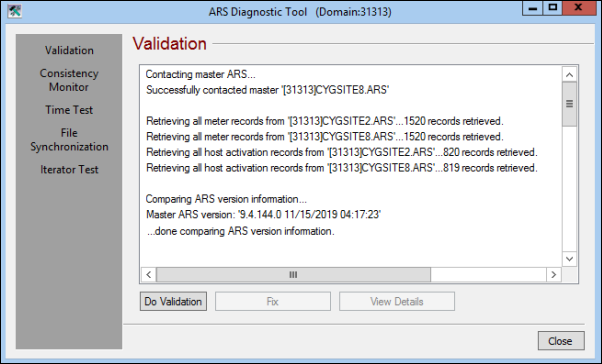
ARS validation is performed on the Validation view. When you click on Validation in the list on the left side of the page, a blank Validation page opens. Click Do Validation to start validation. Once validation is complete, the Validation pane will list the results. Scroll through the result list to view and correct any anomalies and exceptions before proceeding with other ArsDiags tasks.
The following table lists and describes the ArsDiags Validation page properties.
| Properties | Description |
|---|---|
|
Do Validation |
Starts validation of the master ARS. |
|
Fix |
Click to fix issues displayed in the Validation pane. Note: Enabled when an issue that the tool is able to fix is displayed. |
|
View Details |
Click to view details of the specific issue. Note: Enabled when an issue that the tool is able to fix is displayed. |
The Consistency Monitor page compares services running under each ARS within a domain for consistency.
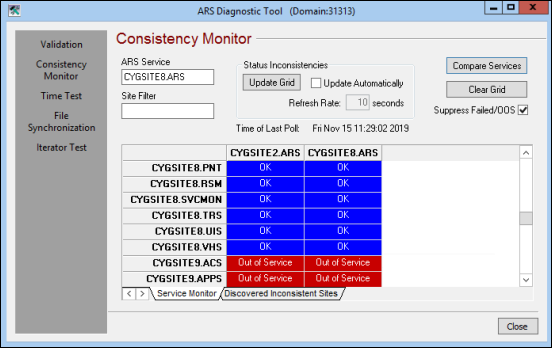
The following table lists and describes the ArsDiags Consistency Monitor page properties. The Time of Last Poll displays when the grid is updated.
| Properties | Description |
|---|---|
|
ARS Service |
Enter the ARS service to be monitored in the field. |
|
Site Filter |
Add a filter to this field to narrow the results. |
| Status Inconsistencies | |
|
Update Grid |
Click to manually update the displayed grid with the latest results. |
|
Update Automatically |
Check to automatically update the grid at the defined refresh rate. |
|
Refresh Rate |
Specify the refresh frequency in seconds when Update Automatically is checked. |
|
Compare Services |
Click to run the Consistency Monitor. Results appear in the grid. |
|
Clear Grid |
Click to clear the grid display. |
|
Suppress Failed/OOS |
Click to hide services that are failed or out of service from the results. |
|
Service Monitor tab |
Displays the results of the consistency check when Compare Services is clicked. |
|
Discovered Inconsistent Sites tab |
Displays a list of sites found with inconsistencies. |
The Time Test page displays ARS information and related Cycle Time for selected domains, allowing you to monitor time synchronization across multiple domains in a redundant environment.
For each domain the Cycle Time, Earliest, Latest, and Delta values are displayed. When more than one domain is displayed, a Summary section displays the Cycle Time, Earliest, Latest, and Delta values across all domains.
Other columns displayed on this page include: the executable version of the ARS, the time the executable started, the port on which it is running, the name of the computer where the executable is running, whether it is the master ARS, the number of services running under the ARS, the activation status, the remote time of the service, the time delta in milliseconds, the number of active messages, and the CygNet message count since the service started.
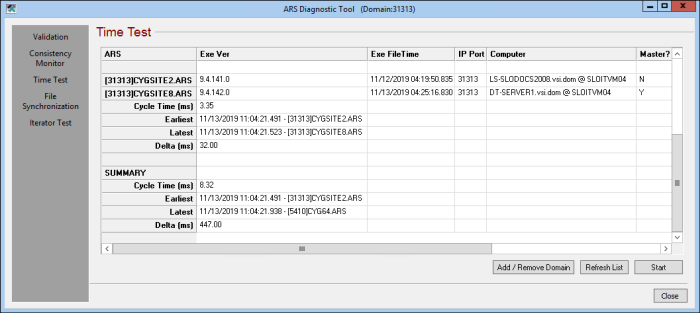
The following table lists and describes the ArsDiags Time Test page properties.
| Properties | Description |
|---|---|
|
Add / Remove Domain |
Opens a dialog box to add and remove domains for the time test in an ad-hoc manner. |
|
Refresh List |
Refreshes the time test information. |
|
Start / Pause |
Starts or pauses the current time test. |
The File Synchronization page displays data associated with important files used by the ARS. Select the metadata, domain definition, time zone, or license file from the Current File menu.
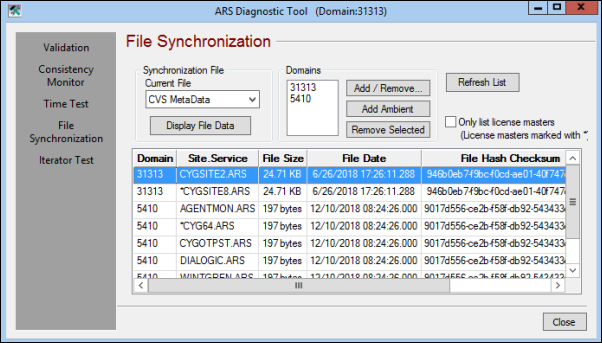
The following table lists and describes the ArsDiags File Synchronization page properties.
| Properties | Description |
|---|---|
| Synchronization File | |
|
Current File |
Select the file to be synchronized from the drop-down menu. Options include:
|
|
Display File Data |
Click to open the Synchronization File Output dialog box that displays a read-only version of selected file's contents. |
| Domains | |
|
Add / Remove |
Click to open a dialog box to add or remove domains for file synchronization. |
|
Add Ambient |
Click to add the ambient domain if it is not already selected. |
|
Remove Selected |
Click to remove the selected domain from the Domains pane. |
|
Refresh List |
Click to refresh the displayed information. |
|
Only list license masters (License masters marked with *) |
When checked, only the ARS license master for each selected domain is displayed. |
The Iterator Test page performs an iterator test for the selected ARS.
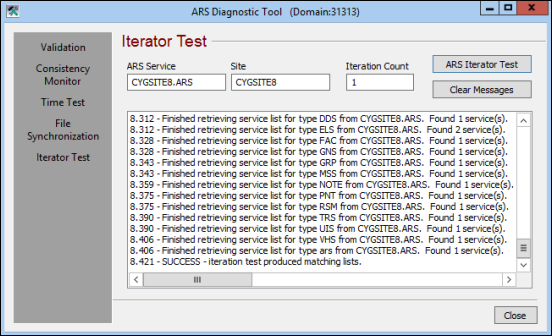
The following table lists and describes the ArsDiags Iterator Test page properties.
| Properties | Description |
|---|---|
|
ARS Service |
Enter the ARS service where the Iterator Test will be performed. |
|
Site |
Add a filter to this field to narrow the results. |
|
Iteration Count |
Enter the number of iterations to perform. |
|
ARS Iterator Test |
Click to perform the Iterator Test. |
|
Clear Messages |
Click to clear all messages from the Iterator Test pan. |

|
|
|

